
systemd in practice: writing a service, a timer, and how to debug failures
On Fedora, “make this start at boot” is not a line in /etc/rc.local — it is a unit file. Scheduled jobs work the same way: systemd timers are replacing cron (F45 minimal images do not even ship crontab).
What follows was measured on F45.
Version and default target
Section titled “Version and default target”systemctl --version | head -2systemctl get-defaultsystemd 261 (261.2-1.fc45)+PAM +AUDIT +SELINUX -APPARMOR +IMA +IPE +SMACK +SECCOMP ...
multi-user.targetA command-line Fedora defaults to multi-user.target (no graphical session); the desktop editions use graphical.target.
How many units are there:
systemctl list-unit-files --type=service --no-pager | tail -1systemctl list-unit-files --type=timer --no-pager | tail -1278 unit files listed.12 unit files listed.Where unit files go
Section titled “Where unit files go”| Location | Written by | Priority | Overwritten on upgrade |
|---|---|---|---|
/usr/lib/systemd/system/ | the package manager | lowest | yes |
/run/systemd/system/ | generated at runtime | middle | lost on reboot |
/etc/systemd/system/ | you | highest | no |
Put your own units in /etc/systemd/system/. Do not edit files under /usr/lib — upgrades overwrite them and later nobody can tell who changed what.
Writing a service
Section titled “Writing a service”sudo tee /etc/systemd/system/lab-hello.service >/dev/null <<'EOF'[Unit]Description=Lab hello serviceAfter=network-online.target
[Service]Type=oneshotExecStart=/bin/sh -c 'date >> /var/log/lab-hello.log; echo hello >> /var/log/lab-hello.log'RemainAfterExit=yes
[Install]WantedBy=multi-user.targetEOFsudo systemctl daemon-reloadsudo systemctl start lab-hello.servicesystemctl status lab-hello.service --no-pager | head -6● lab-hello.service - Lab hello service Loaded: loaded (/etc/systemd/system/lab-hello.service; disabled; preset: disabled) Drop-In: /usr/lib/systemd/system/service.d └─10-timeout-abort.conf Active: active (exited) since Tue 2026-10-27 17:41:46 UTC; 9ms ago Invocation: 45ec53c7e0f24c72883a6d099d034a05Three details worth reading carefully:
disabled— the file exists but you neverenabled it, so it will not start at boot;active (exited)— the normal state foroneshotwithRemainAfterExit=yes: the script finished, the service still counts as active;Drop-In— those lines are not yours; the distribution adds a shared timeout policy.
Choosing Type
Section titled “Choosing Type”| Type | Counts as “started” when | Suits |
|---|---|---|
simple (default) | the process has been spawned | long-running foreground processes |
oneshot | the process has finished | one-off scripts, initialisation |
forking | the parent exits | classic daemons that daemonise themselves |
notify | the program calls sd_notify | when “actually ready” matters |
Writing a timer (the cron replacement)
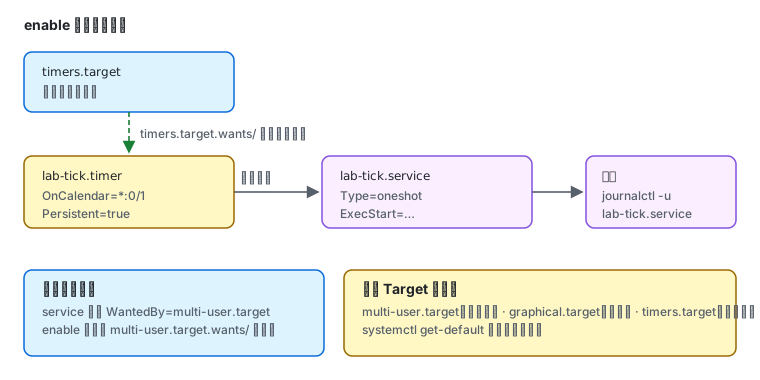
Section titled “Writing a timer (the cron replacement)”A timer needs a pair: a .service that does the work and a .timer that schedules it.
sudo tee /etc/systemd/system/lab-tick.service >/dev/null <<'EOF'[Unit]Description=Lab tick[Service]Type=oneshotExecStart=/bin/sh -c 'echo tick $(date +%s) >> /var/log/lab-tick.log'EOF
sudo tee /etc/systemd/system/lab-tick.timer >/dev/null <<'EOF'[Unit]Description=Lab tick every minute[Timer]OnCalendar=*:0/1Persistent=true[Install]WantedBy=timers.targetEOF
sudo systemctl daemon-reloadsudo systemctl enable --now lab-tick.timer
Created symlink '/etc/systemd/system/timers.target.wants/lab-tick.timer' → '/etc/systemd/system/lab-tick.timer'.enable --now creates a symlink under timers.target.wants/ — that symlink is what “start at boot” actually means. It is not an entry in some configuration file.
When does it run next:
systemctl list-timers lab-tick.timer --no-pagerNEXT LEFT LAST PASSED UNIT ACTIVATESTue 2026-10-27 17:43:00 UTC 29s - - lab-tick.timer lab-tick.serviceThe ACTIVATES column names the service it triggers.
Persistent=true means a run missed while the machine was off is caught up on the next boot — something cron’s @reboot cannot do.
OnCalendar forms
Section titled “OnCalendar forms”| Form | Meaning |
|---|---|
*:0/1 | every minute |
hourly / daily / weekly | fixed periods |
Mon..Fri 02:00 | weekdays at 02:00 |
*-*-* 03:30:00 | every day at 03:30 |
OnUnitActiveSec=5min | 5 minutes after the last run (relative) |
Validate an expression without waiting for it:
systemd-analyze calendar "*:0/1"Debugging a failure
Section titled “Debugging a failure”Deliberately failing a service produces:
● lab-fail.service - Lab failing service Loaded: loaded (/etc/systemd/system/lab-fail.service; static) Active: failed (Result: exit-code) since Tue 2026-10-27 17:43:03 UTC Process: 24880 ExecStart=/bin/false (code=exited, status=1/FAILURE) Main PID: 24880 (code=exited, status=1/FAILURE) Mem peak: 1.2MThe Process: lines are where debugging starts — they give an exit code instead of a vague “failed to start”.
The order to follow:
systemctl list-units --failed # 1) what failed this bootsystemctl status <unit> --no-pager # 2) exit code and reasonjournalctl -u <unit> -n 50 --no-pager # 3) the actual logjournalctl -xeu <unit> # 4) log with systemd's explanations UNIT LOAD ACTIVE SUB DESCRIPTION● dnf-makecache.service loaded failed failed dnf5 makecache● lab-fail.service loaded failed failed Lab failing serviceChanging someone else’s unit: use a drop-in
Section titled “Changing someone else’s unit: use a drop-in”Never edit the file under /usr/lib. Instead:
sudo systemctl edit <unit> # creates /etc/systemd/system/<unit>.d/override.confsudo systemctl daemon-reloadedit opens an empty file; you write only what you want to override or append:
[Service]Environment=HTTP_PROXY=http://proxy.internal:3128TimeoutStartSec=180Upgrades keep the distribution’s changes and yours survive alongside them.
Slow boot? Measure it
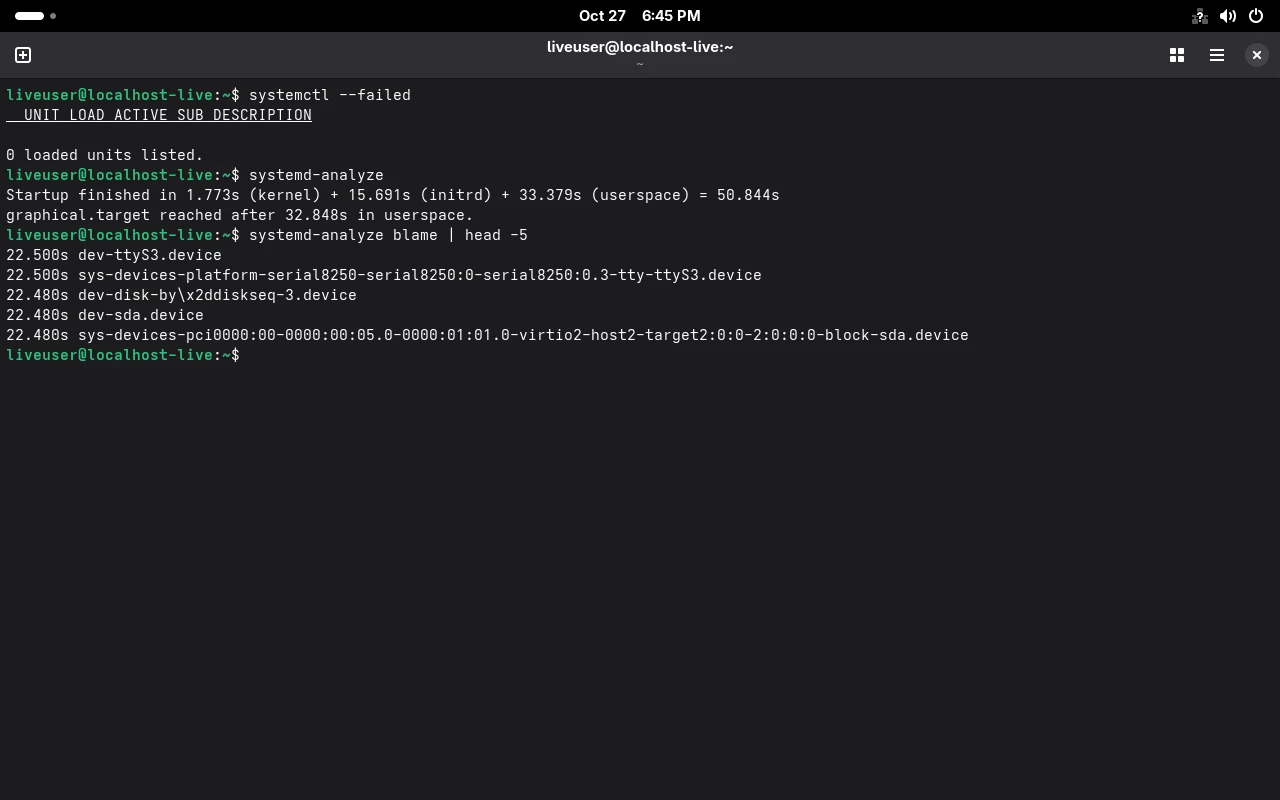
Section titled “Slow boot? Measure it”systemd-analyzeStartup finished in 1.502s (kernel) + 2.497s (initrd) + 7.888s (userspace) = 11.888sThe three parts are kernel, initrd and userspace. If userspace dominates, look at blame:
systemd-analyze blame | head -311.713s unbound-anchor.service 3.798s sys-module-fuse.device 3.763s dev-vport1p1.deviceunbound-anchor.service on top is exactly the service that kept DNS resolution failing on this machine — it was stuck waiting to refresh the upstream root key. The “slow boot” and the “weird network” were the same root cause.
Everyday commands
Section titled “Everyday commands”| Goal | Command |
|---|---|
| state | systemctl status <unit> --no-pager |
| start / stop | systemctl start / stop |
| start at boot | systemctl enable --now <unit> |
| stop starting at boot | systemctl disable --now <unit> |
| block entirely | systemctl mask <unit> |
| list failures | systemctl list-units --failed |
| show the unit file | systemctl cat <unit> |
| show effective values | systemctl show <unit> -p <property> |
| reload after edits | systemctl daemon-reload |
| timers | systemctl list-timers --all |
Related pages
Section titled “Related pages”- Backup and restore — scheduling backups with a timer
- firewalld — opening the port a service listens on
- SELinux — the other reason a service gets refused
- Storage and filesystems — space for logs and data
- Error lookup —
Unit could not be found,is masked,Access denied - Cheat sheet — every systemd command
- Official: systemd.service, systemd.timer